Important Information
All size-related parameters use Ångströms (10-10 m) or Q vectors in Å-1. Scattering contrast, number distributions, and volume-related quantities use centimeters (10-2 m).
Loading the macros
Start Igor Pro.
In the Macros menu, select “Load Nika 2D SAS macros”.
A new menu “SAS 2D” appears. All Nika functions are accessible from this menu.
Unload the macros
To unload Nika from an experiment, two steps are recommended. First, remove the large lookup tables used by Nika for 2D-to-1D conversion by selecting “HouseKeeping” from the SAS 2D menu. This can reduce the Igor experiment file size by 60 MB or more. Then, remove the macros themselves by selecting “Remove Nika 1 macros” from the SAS 2D menu. This unloads the macros and restores the “Load Nika macros” item to the Macros menu.
Configure default fonts and names
“GUI uncertainty config” in the SAS menu opens a panel with settings common to all tools, including font type and size and how legend names are handled.
Note
Panel controls are applied immediately to all existing panels. Graph controls are applied only to newly created graphs.
Panels font and font sizes
These controls allow font customization on control panels to accommodate platform differences in default fonts and sizes. Settings are saved both on the local computer and within the Igor experiment.
When these settings are applied, preferences are stored in Igor’s user preferences folder and applied to the current experiment simultaneously.
When the experiment is opened on a different computer, the local computer’s preferences take effect when “Configure GUI and Graph defaults” is run. The new settings are saved on that computer and within the experiment.
Panel fonts are platform-specific, so the same experiment may display differently on Mac and PC.
Note
Not all controls follow these font settings — some buttons have fixed fonts that are not affected.
Since version 1.70, these controls are shared with the Irena package to prevent conflicts.
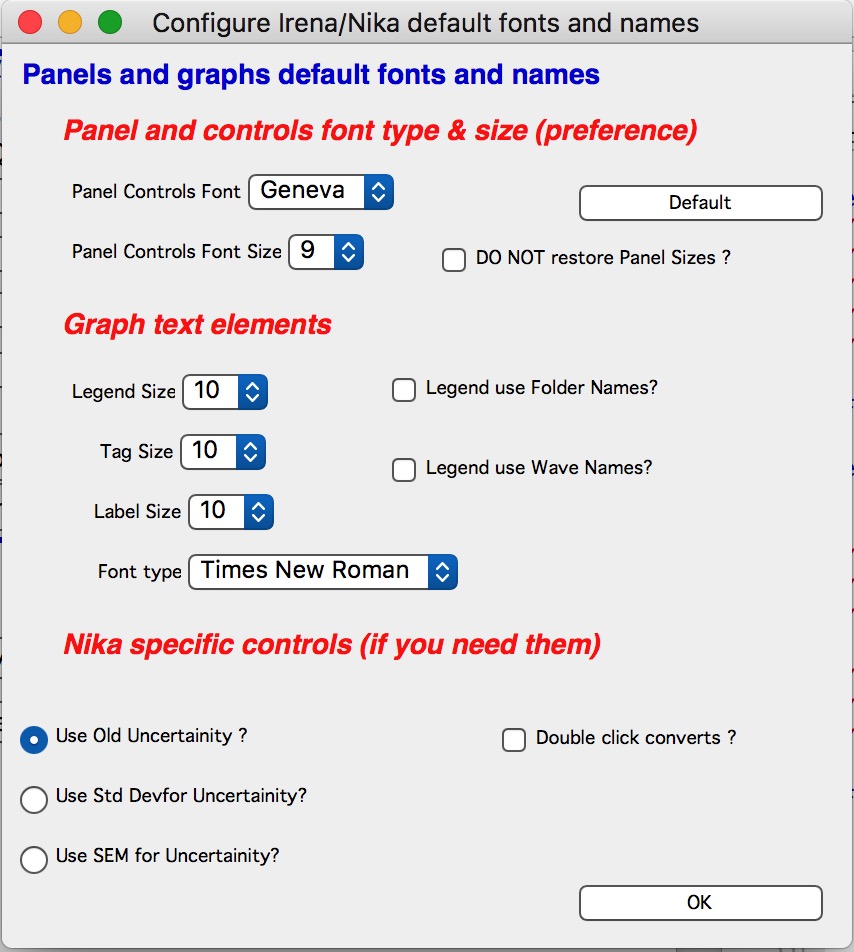
Mismatched font choices between GUI and Graph defaults panels can cause panels to display incorrectly. The “Defaults” button resets panel fonts to the platform-specific defaults (Mac: Geneva size 9; PC: Tahoma size 12).
Do NOT restore panel sizes
This checkbox controls whether panels are restored to their last-used size and position when they are recreated (after being closed) or when an existing experiment is reopened.
When unchecked, every panel resize is recorded. On recreation, the panel returns to that saved size and position.
Note
Size and position are recorded only when the panel is resized, not when it is merely moved. To override this behavior temporarily, hold any modifier key (Alt, Cmd/Ctrl, Shift) while creating the panel.
Error (uncertainty) estimates
Prior to version 1.42, Nika used an uncertainty calculation that worked adequately in most cases but contained a bug causing incorrect values at very low intensities where Poisson statistics apply. From version 1.43, three options are available:
Old method (default for compatibility). Contains the known bug but produces acceptable results in most cases.
Standard deviation — The intended quantity that the old method approximated.
Standard error of mean (SEM) — Very small for high-intensity instruments; suitable for Pilatus detectors.
Configuration manager
From version 1.70, Nika includes a “Configuration manager” that allows multiple Nika configurations to be stored and switched within a single Igor experiment. The primary use case is reducing data from multiple detector distances, multiple detectors, or multiple instruments (for example, the APS 9ID USAXS/SAXS/WAXS instrument requires separate SAXS and WAXS configurations).
The Configuration manager copies the entire Nika working folder
(root:Packages:Convert2Dto1D) — a snapshot of the current state — into
root:Packages:NikaGeometries under a user-specified name. This snapshot
includes the mask, lookup tables, empty image, dark image, and all other Nika
state. A second configuration can then be set up and saved separately.
Warning
Only one configuration can be active at any given time.
All Nika windows are closed when switching configurations.
Storing configurations significantly increases Igor experiment file size.
Each saved configuration is a snapshot; subsequent changes to the active configuration are not reflected in the saved copy.
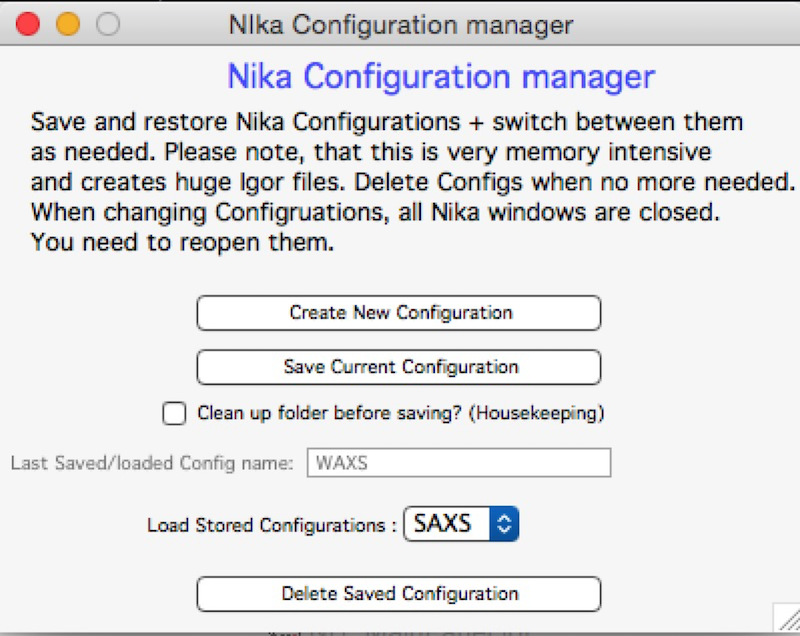
“Create New Configuration” — Deletes the current Nika configuration and restarts Nika with a clean default state.
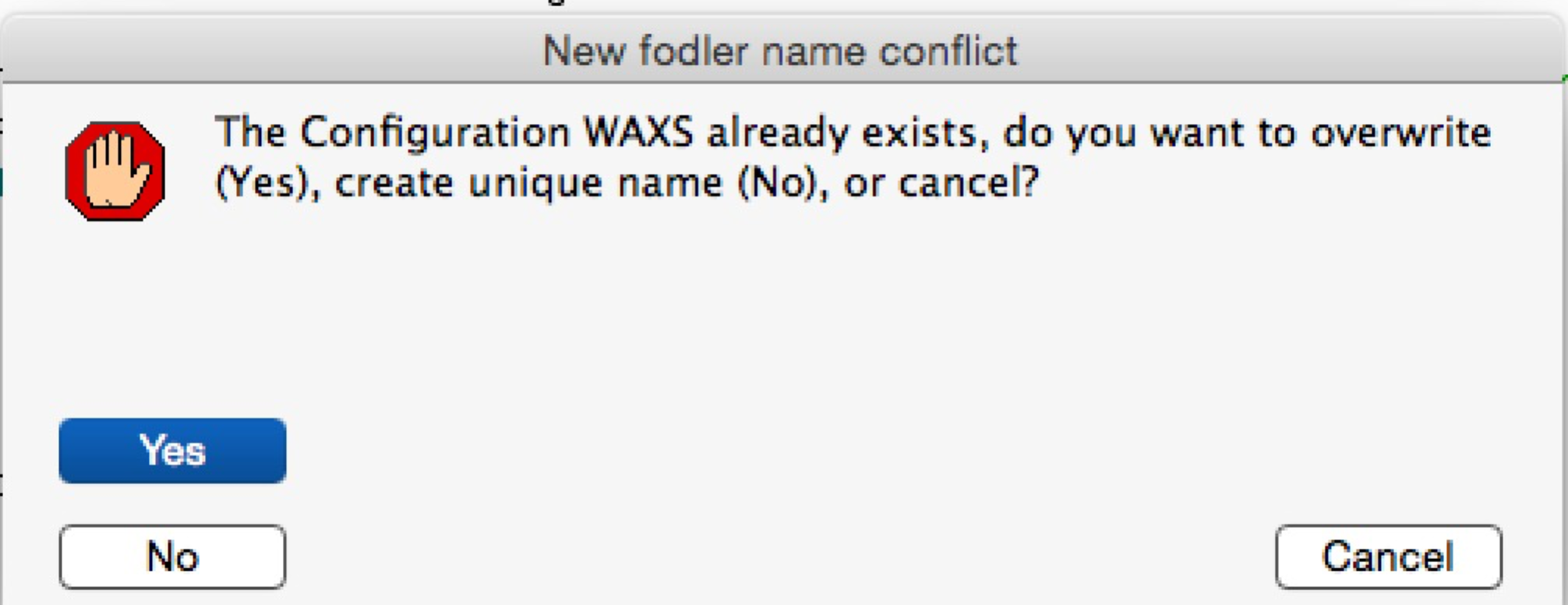
“Save Current Configuration” — Saves the current Nika working folder as a named stored configuration. The name is cleaned up automatically; if it already exists, a dialog offers the options of overwriting, creating a unique name (appending a number), or canceling.
“Clean up folder before saving?” — Runs the housekeeping function before saving, removing temporary lookup tables and other recalculable data. This reduces file size but means the first image processed after loading the configuration will take longer.
“Last Saved/Loaded Config name” — Displays the name under which the configuration was most recently saved or loaded. This string is not updated when Nika parameters are changed, so it can become stale. It reflects only what the configuration was named at the last save or load operation.
“Load Stored Configuration” — Lists saved configurations. Selecting one opens a dialog offering to save the current configuration, discard it, or cancel before loading the selected one. The main Nika panel reopens after loading.
“Delete Saved Configuration” — Opens a dialog to select and permanently delete a stored configuration.
Note
Saved configurations cannot be renamed through the Configuration Manager UI.
To rename one, manually rename its folder at
root:Packages:NikaGeometries in the Igor data browser, then restart
the Configuration Manager.
Using Nika on small and large displays
Nika generates many windows, panels, graphs, and notebooks and requires a large display. A 1024×768 display is too small for productive work. The current version requires at least 1100×900 pixels — and on Windows with high-DPI displays this is more complicated. See GUI Controls Missing in Common Issues for details.
At startup, Nika checks the available display area. If it is smaller than the minimum (1100×900), a warning dialog appears and instructions are printed in the history area. Some tools may refuse to open if their panels would not fit on screen. To increase available area: maximize the Igor window (Windows), change display resolution, or reduce display scaling (DPI). To recheck after making changes, select “Check Igor display size” from the USAXS, SAS2D, or SAS → Help menu.
On high-DPI displays (4K and similar) on Windows, large display scaling (200% or more) effectively reduces the pixel count available to Igor Pro, making panels too large to fit on screen.
Most panel content can be scrolled vertically using the arrows in the top-right corner:
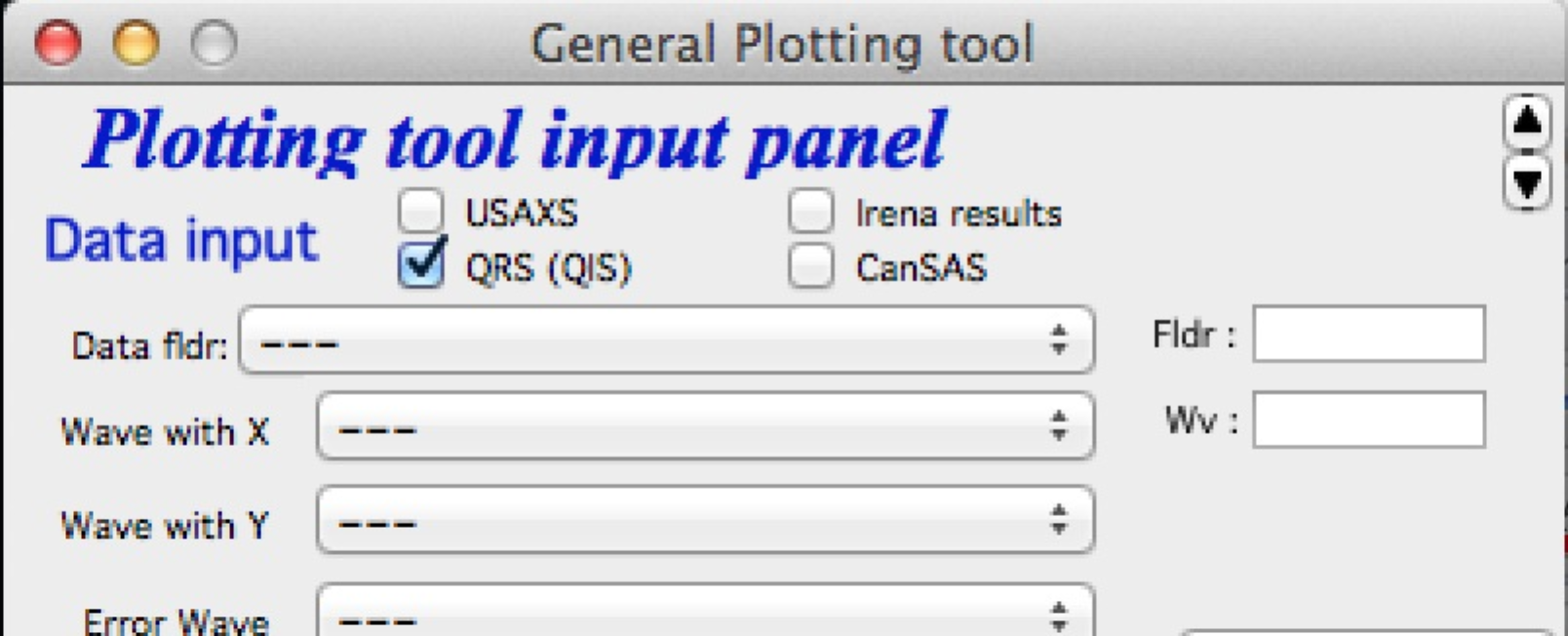
This is the same panel with content scrolled up to reach bottom controls:
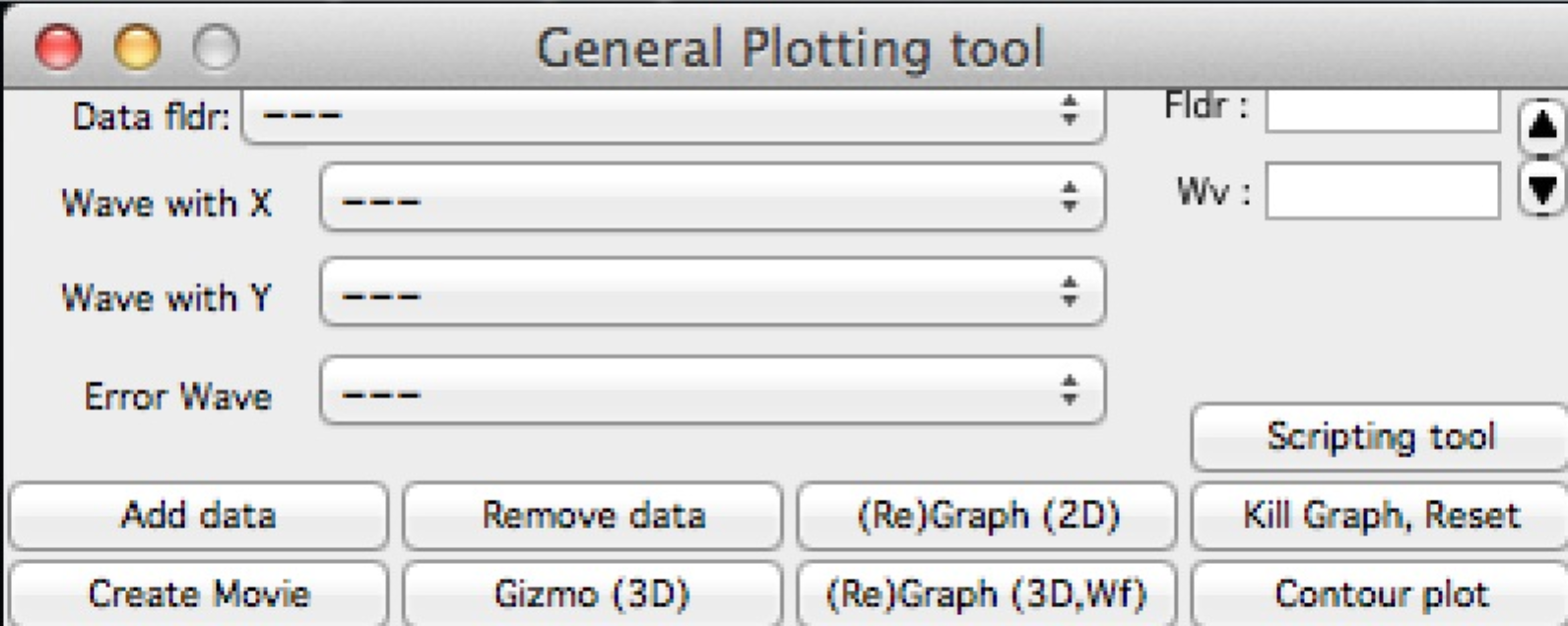
On large displays, panels can be resized by dragging the lower-right corner (marked with a resize handle):

Panels can be scaled up but not below their original size. Panel size is persistent within the Igor experiment — if a panel is scaled up and closed, it reopens at the same size. Size is capped at 50% of the current display width and 90% of the display height. To reset a panel to its default size, hold any modifier key (Shift, Alt, or Cmd/Ctrl) while opening it.
Check for updates
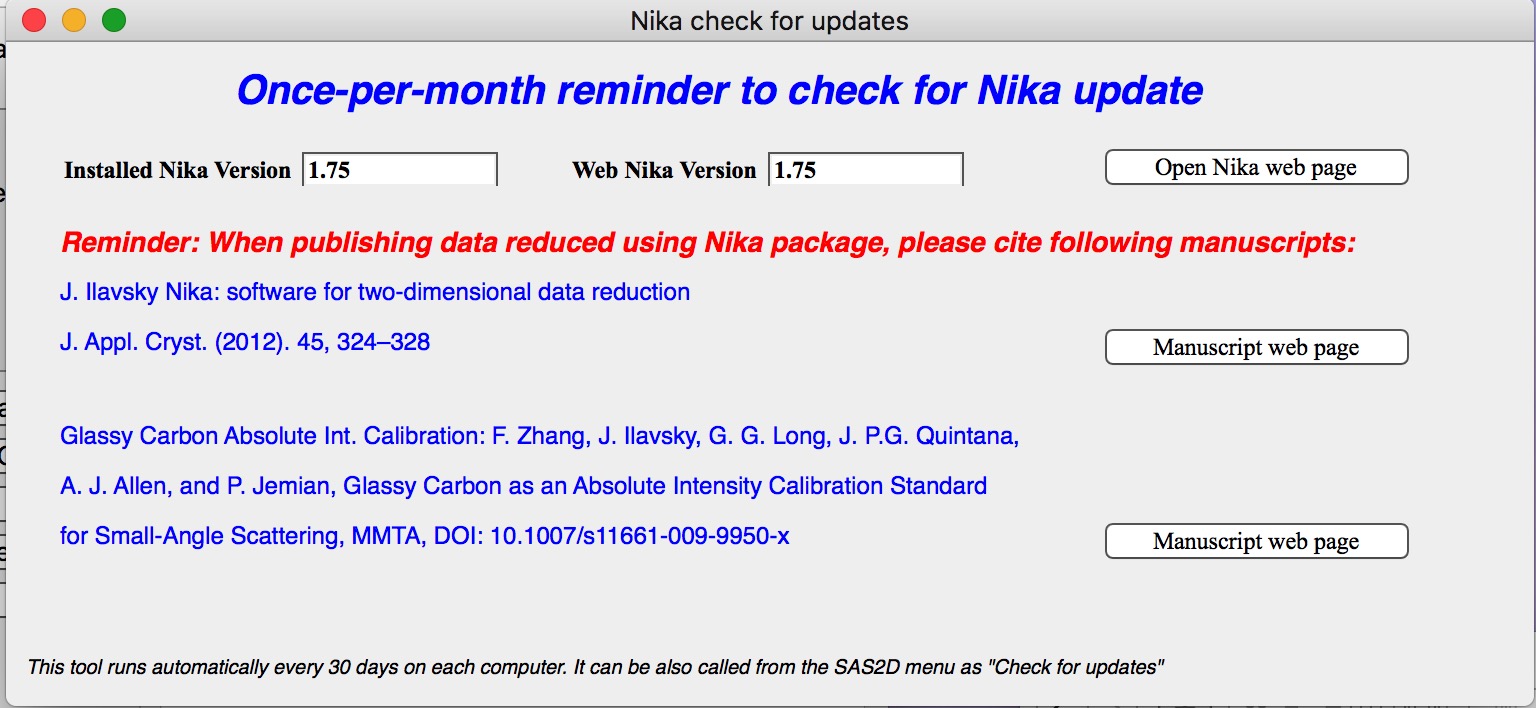
Nika checks for available updates once per month. The check compares installed package versions against those available online and reminds users to cite the relevant publications. The update panel can be opened at any time from SAS 2D → Check for updates. The buttons open the appropriate web pages in your browser.
Modifying Nika functionality
Nika functionality can be extended using hook functions — Igor functions that are called at specific points in Nika’s processing pipeline if they exist in the current experiment. A working knowledge of Igor programming is required.
Available hook functions:
Name of hook function |
Called where |
Purpose |
|---|---|---|
Nika_Hook_ModifyMainPanel() |
NI1A_Convert2Dto1DPanelFnct() |
After the main panel is created; modify panel layout or add controls. |
Nika_Hook_AfterDisplayLineout(int,Qvec,Err) |
NI1A_DisplayLineoutAfterProc |
After a lineout is displayed; modify appearance or perform additional analysis. |
ModifyImportedimageHook(imageName) |
NI1BC_BmCntrCreateimage NI1A_ImportThisOneFile NI1A_LoadEmptyOrDark NI1M_MaskCreateimage NI1_FloodCreateAppendimage |
After image import; trim to ROI, apply corrections, etc. |
PilatusHookFunction(imageName) |
NI1A_UniversalLoader |
After a Pilatus image is loaded; modify or augment the loaded data. |
ImportedimageHookFunction(imageName) |
NI1A_UniversalLoader |
After loading any image; modify the loaded image as needed. |
AfterDisplayimageHook() |
Various places after Nika displays a detector image. |
Modify the displayed image. Operates on the top image. |
Movie_UserHookFunction() |
NI1A_MovieCallUserHookFunction |
In the movie tool; create or modify the image used for the movie frame. See GUI. |
Need more? |
Contact the developer to request additional hooks. |
Example — print image statistics after any image is loaded:
Function ImportedimageHookFunction(NewWaveName)
   wave NewWaveName
   wavestats NewWaveName
 end
Example — zoom in on the top 50 pixels of the detector image after display:
Function AfterDisplayimageHook()
    SetAxis/R left 50,0
 end