NeXus data
Nika has supported NeXus files since version 1.75, which introduced more complete support. The APS USAXS/SAXS/WAXS instrument has used NeXus for raw data storage since approximately 2013.
What is NeXus?
NeXus is a file format standard developed by the X-ray and neutron scattering communities to enable sharing and long-term storage of data from scattering instruments in a universally readable form. It is built on HDF5 — a binary data container (similar in concept to Excel .xls or Igor .pxp files) that is supported by many commercial packages and available for most programming environments. HDF5 is free, open, and actively maintained.
NeXus specifies how to organize and name data within an HDF5 file (e.g., use “wavelength” for the wavelength field). For most users, this metadata layer is transparent, but it enables any NeXus-capable software to locate and interpret your data without instrument-specific importers.
Further information:
Nika supports two NeXus application definitions:
NXsas — raw data input from instruments.
NXcanSAS — output of reduced (1D or 2D) data for downstream analysis software.
Both can theoretically be stored in the same NeXus file. Version 1.75 creates two separate files for these purposes; single-file output can be implemented if needed.
Raw data NeXus (NXsas) — import/export
Many large facilities currently use NeXus files to store raw instrument data, including instruments at the APS, Diamond, Soleil, and several desktop instruments. Some detector software now writes NeXus files natively.
Using NeXus for raw data allows Nika (and other NeXus-capable software) to import data with minimal custom configuration, since instrument parameters are stored in a standardized, human-readable structure.
Version 1.75 also adds the ability to export raw data in NXsas format. This is useful when data come from an instrument that produces only other formats (e.g., TIFF): Nika can export the raw image to a NeXus file with all available metadata attached, making it readable by other NeXus-capable reduction software.
Calibrated data NeXus (NXcanSAS) — export
Exporting processed 1D or 2D data to NeXus (NXcanSAS format) allows downstream packages such as Irena to import them directly. Compared to ASCII export, NeXus files can store multiple sectors or profiles in a single file — useful when generating many different lineouts from the same image — and include machine-readable metadata alongside the data.
For example, 36 different sector averages from the same image would require 36 ASCII files but only one NeXus file. Downstream software that properly supports NXcanSAS should import the result without any manual configuration.
Note
The NXcanSAS standard is under active development. While every effort is made to write conformant files, there is enough flexibility in the standard that data exchange cannot be guaranteed across all software implementations without testing.
NeXus GUI description
The NeXus control panel opens in two ways:
Select “Nexus” as the input file type in the “Figure type” popup on the main panel.
Select “Export to Nexus” on the Sectors tab or Line profile tab.
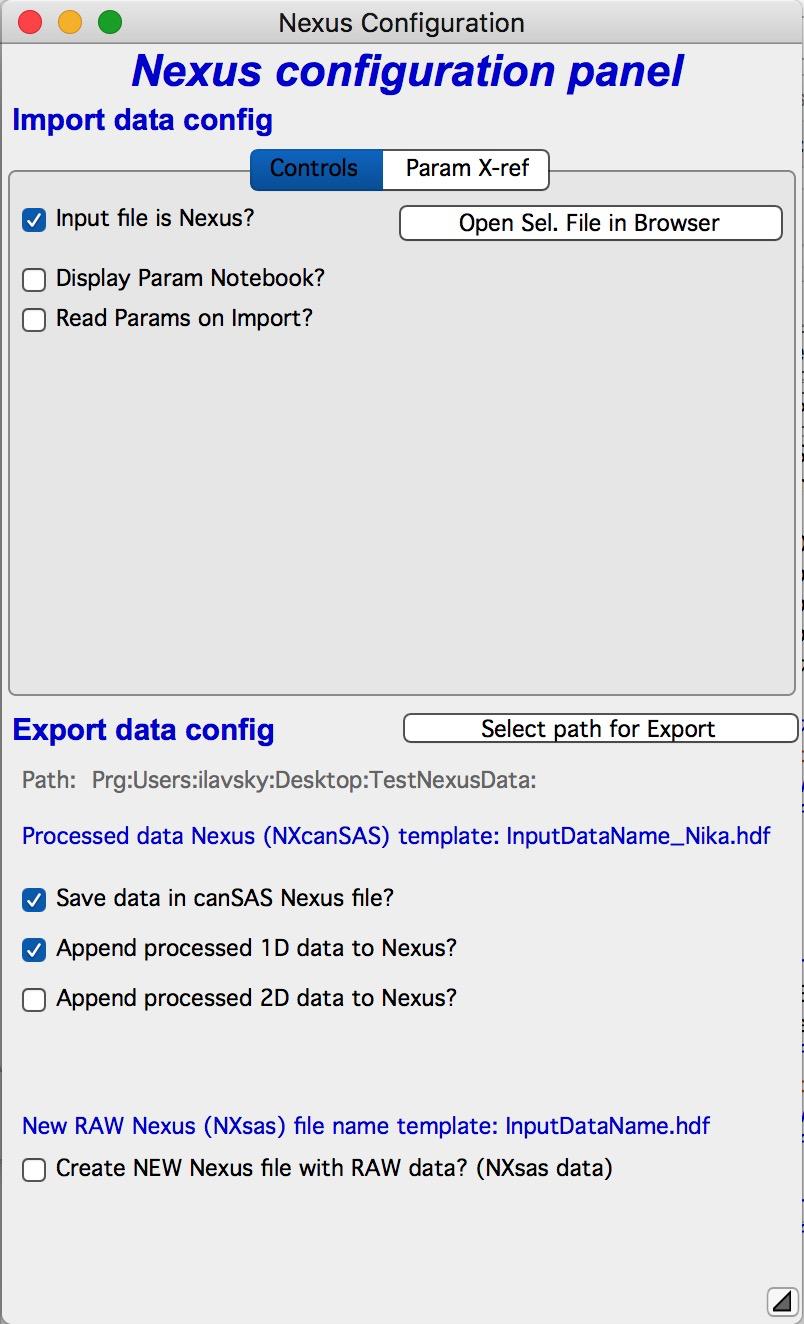
The panel controls NXsas import and NXcanSAS export. Configure the controls relevant to your use case and ignore the others. Note that some control combinations may be inconsistent — for example, selecting Nexus as the file type in the main panel while deselecting it in the NeXus panel. If you encounter unexpected behavior, contact the developer.
NXsas raw data import section
The “Input file is Nexus” checkbox should be selected.
“Open Sel. file in Browser” — Opens the selected file in the Igor HDF5 Browser for manual inspection. Close the file using the Close button before proceeding, then close the HDF5 Browser window. Opening multiple files simultaneously is possible but clutters the workspace.
“Display Param Notebook?” — Opens a notebook listing all NeXus parameters found in the imported file. Useful for manually locating specific metadata, but slows import and opens an additional window.
“Read Params on Import?” — Enables automatic reading of instrument parameters from the NeXus file into Nika. When active, the “Param X-ref” tab becomes editable.
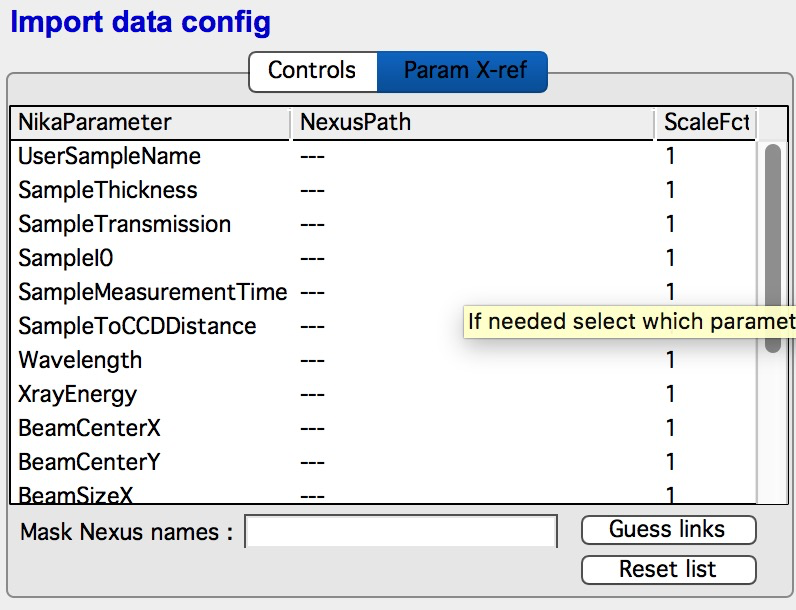
Filling the parameter cross-reference table
At least one NeXus file must have been imported in Nika before the parameter list is populated.
The table maps Nika parameter names (column 1) to NeXus paths (column 2) — the location within the NeXus file hierarchy where the value is stored. Numerical parameters can be scaled by a conversion factor (e.g., to convert between length units).
To fill a NeXus path manually: right-click in the NexusPath field to browse available paths:
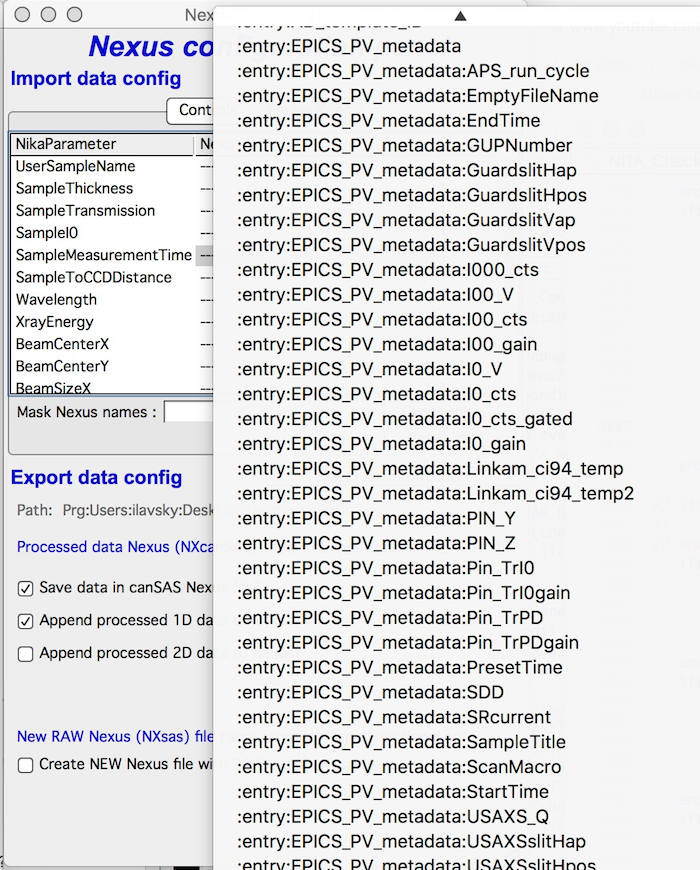
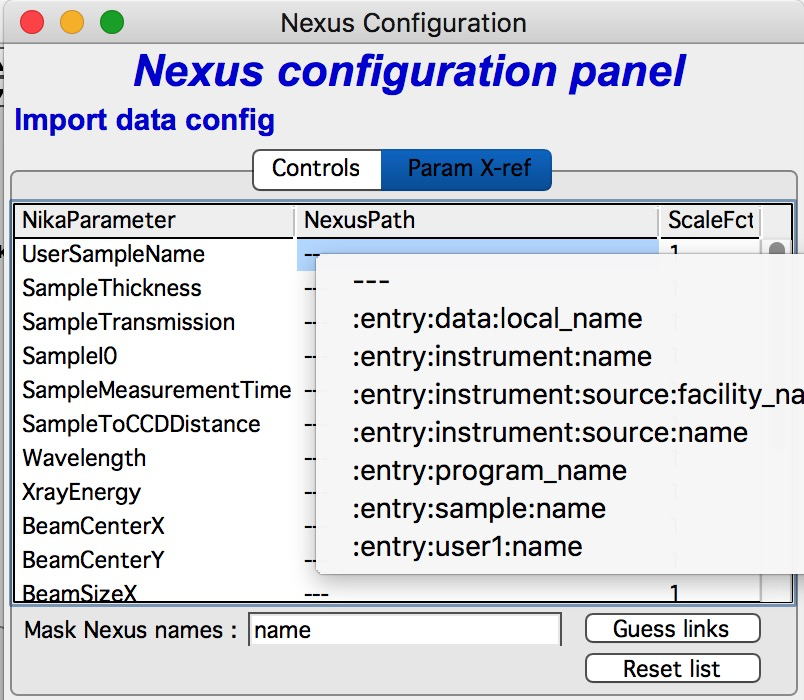
“Mask Nexus name” — Enter a search string to filter the path list using regular expressions (compare left and right panels above).
“Guess links” — Checks for standard NeXus paths matching Nika parameters and fills them in automatically where matches are found.
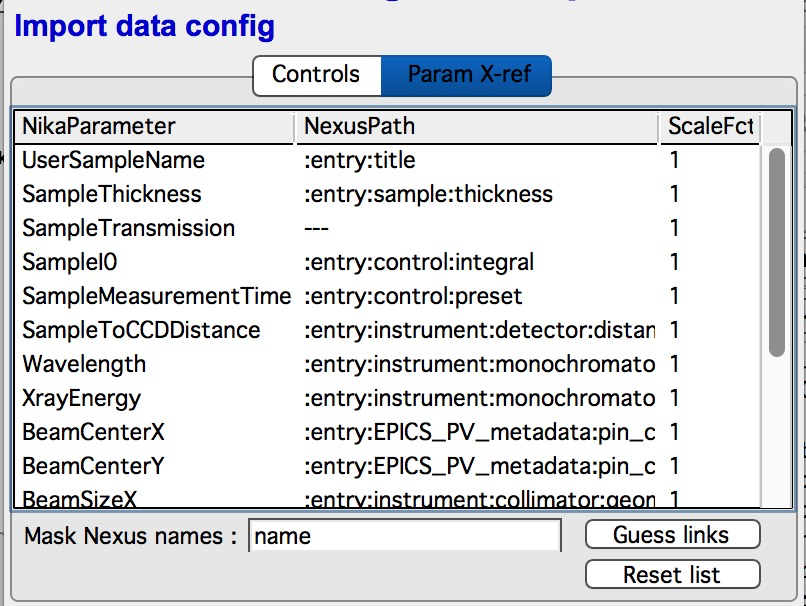
Some parameters may appear at multiple NeXus paths; the most standard location is not always used. Manual verification may be needed.
“Reset list” — Clears and resets the cross-reference table.
NXcanSAS / NXsas data export section
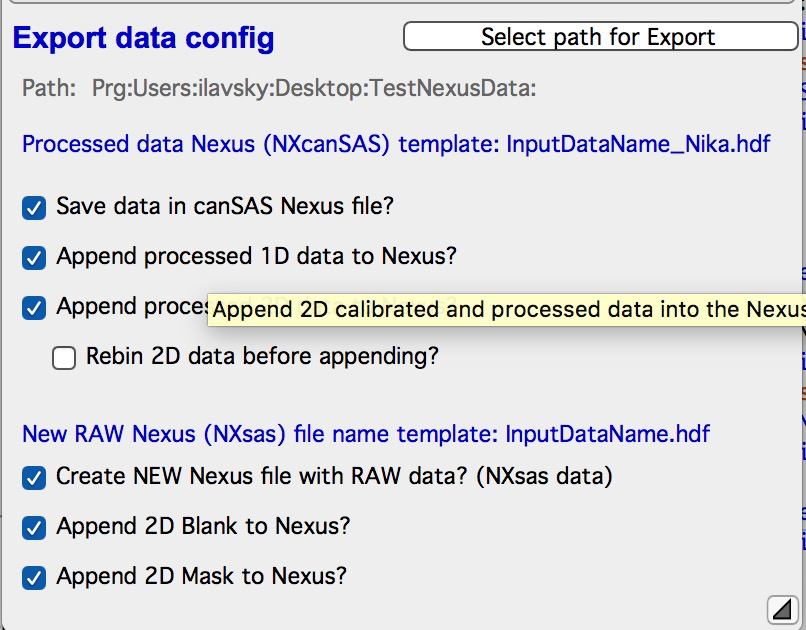
This section handles export of processed data (1D or 2D) to NXcanSAS format for downstream analysis, and export of raw data to NXsas format.
“Select path for Export” — Choose the folder where new NeXus files will be saved.
“Save data in canSAS Nexus file?” — Main on/off switch for NeXus export.
“Append processed 1D data to Nexus?” — Appends each sector average, circular average, or line profile to the output NeXus file. If the same sector is saved to an existing file, it is overwritten. Take care not to accidentally overwrite data.
“Append processed 2D data to Nexus?” — Appends the fully reduced, normalized, and (if applicable) calibrated 2D data to the NeXus file. This is the same image shown by “Display processed” in the main Nika panel.
“Rebin 2D data before appending” — Not functional in version 2.75. Do not use; this will be addressed in a future release.
“Create NEW Nexus file with RAW data?” — Creates a new NXsas file from the
current input data (non-Nexus input types only). Blank and mask images can be
included. The new file is saved in the Export path location with _Nika
appended to the name to distinguish it from the original.