Import USAXS/SAXS/WAXS data in Igor Pro
The import tool uses the USAXS naming system for USAXS data and the
QRS naming system for SAXS and WAXS data. When using Irena to analyze,
plot, or export data, select the appropriate USAXS or QRS option at
the top of each panel.
Collected data arrangement
When you collect data on the 12IDC USAXS/SAXS/WAXS instrument, data are saved
in a folder named MM_DD_userName. The folder name is formed by prepending
the month and day (MM_DD_) to the name selected by staff, typically based
on the PI username. This user folder contains subfolders for each sample,
named at the SampleName level. Sample folders can be created with the
command RE(newSample("sampleName")). The default sample name is "data",
used when newUser is run.
Within each sample folder:
USAXS data are stored in a subfolder with the suffix
_usaxsSAXS data are stored in a subfolder with the suffix
_saxsWAXS data are stored in a subfolder with the suffix
_waxs
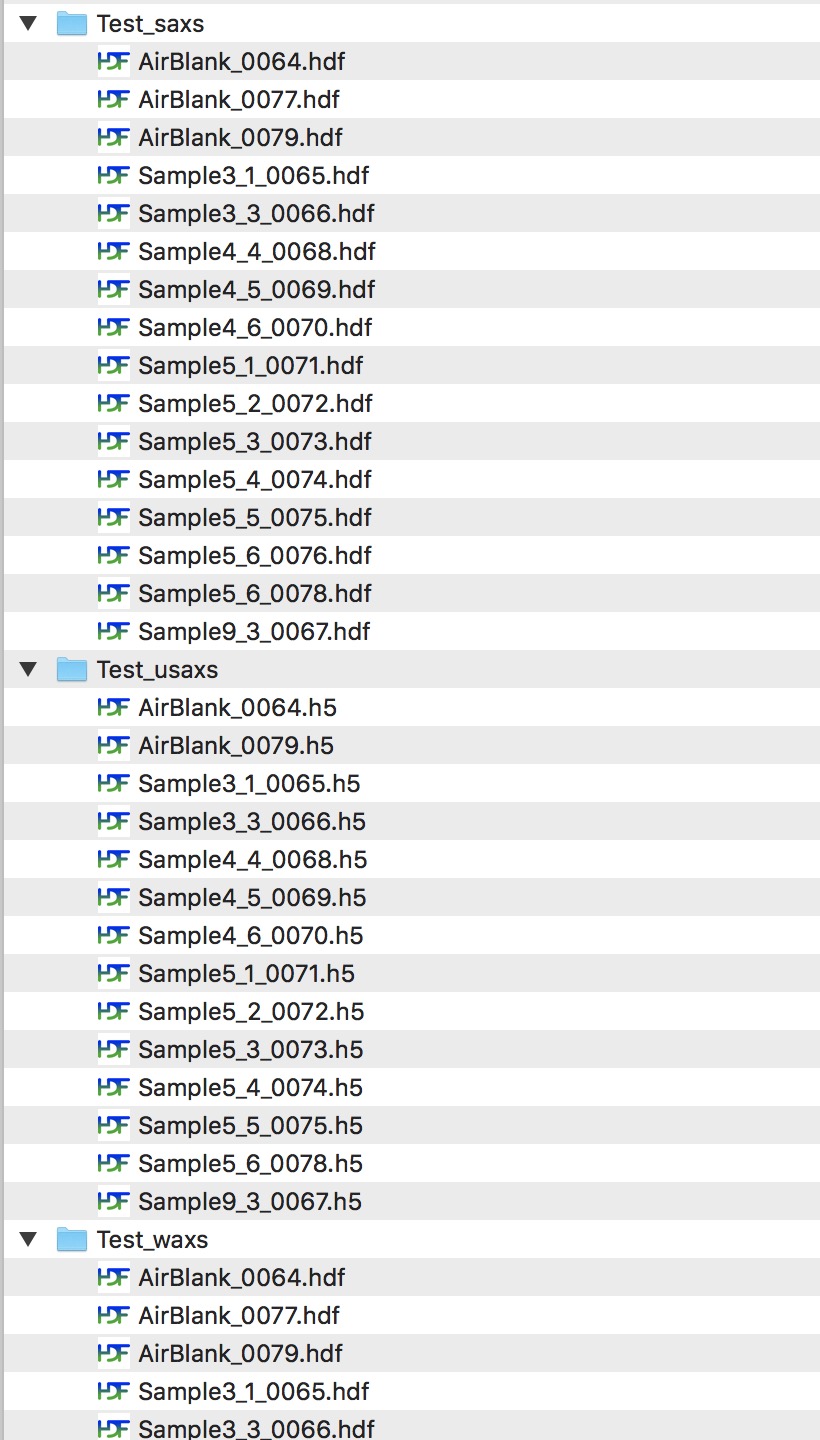
After completing your experiment, the MM_DD_userName folder is typically
available via USB drive or Box.com (ANL cloud storage). A typical USAXS/SAXS/WAXS
dataset per sample is less than 4 MB. Small JPEG witness images (~100 KB each)
are also collected before each measurement run. The instrument performs
automatic data reduction on each dataset — see
Matilda automatic data reduction for details.
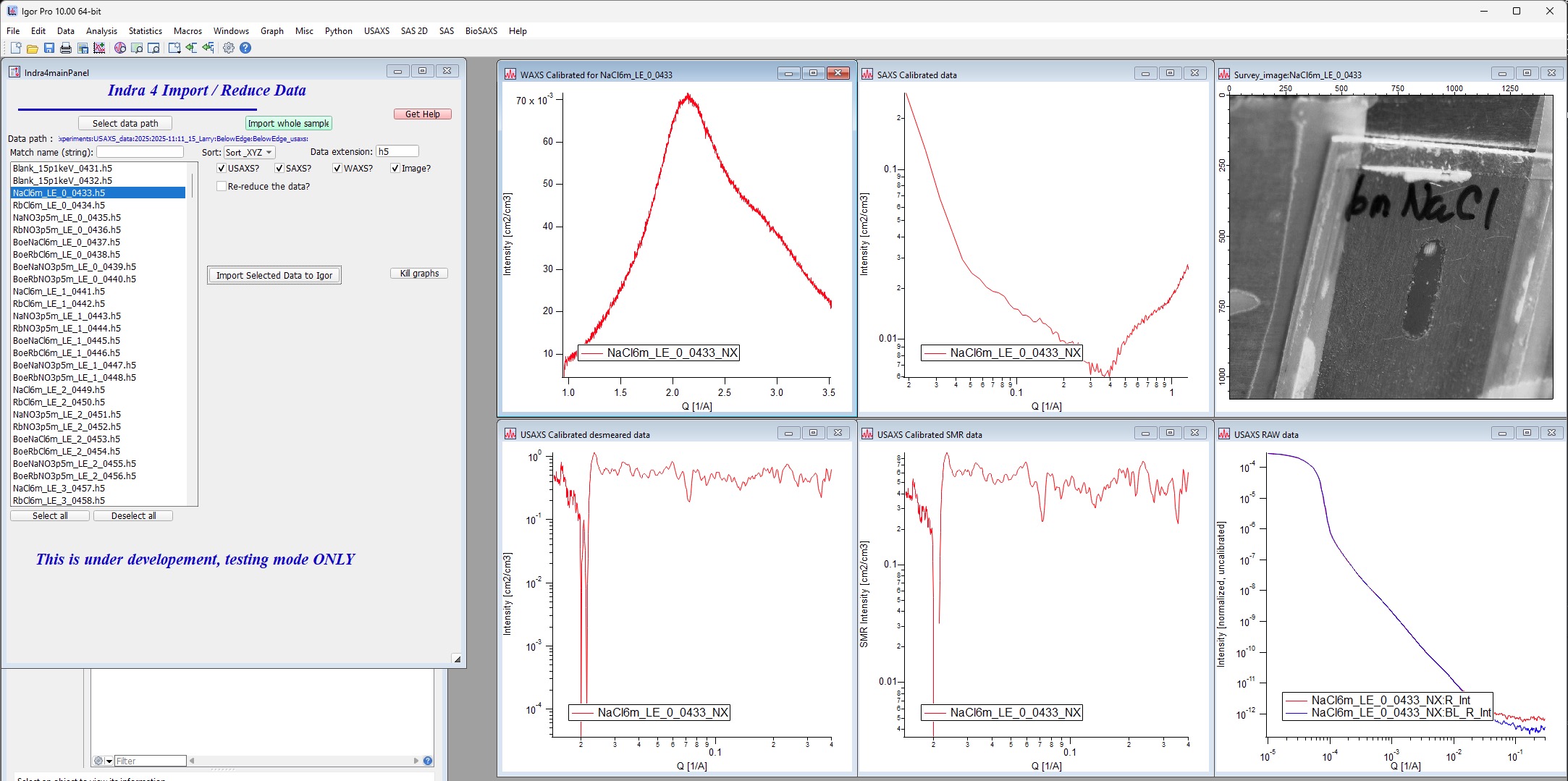
Indra release 2.05 introduces a new import tool that can quickly import all data from NXcanSAS (NeXus) data files. The tool is suitable for general use and also supports basic re-reduction of data with default parameters.
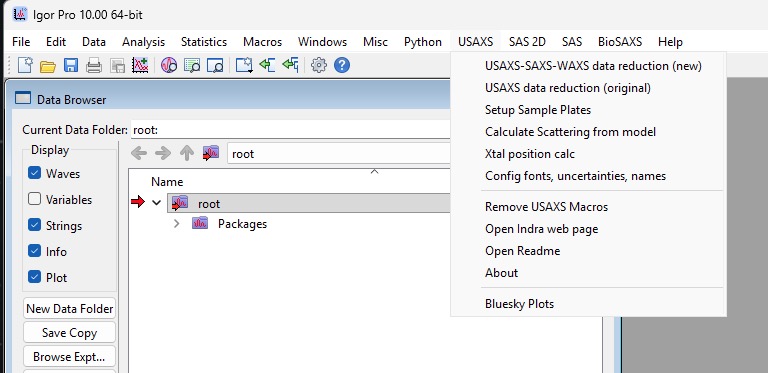
To open the new import panel, select “USAXS-SAXS-WAXS data reduction (new)” from the USAXS menu:
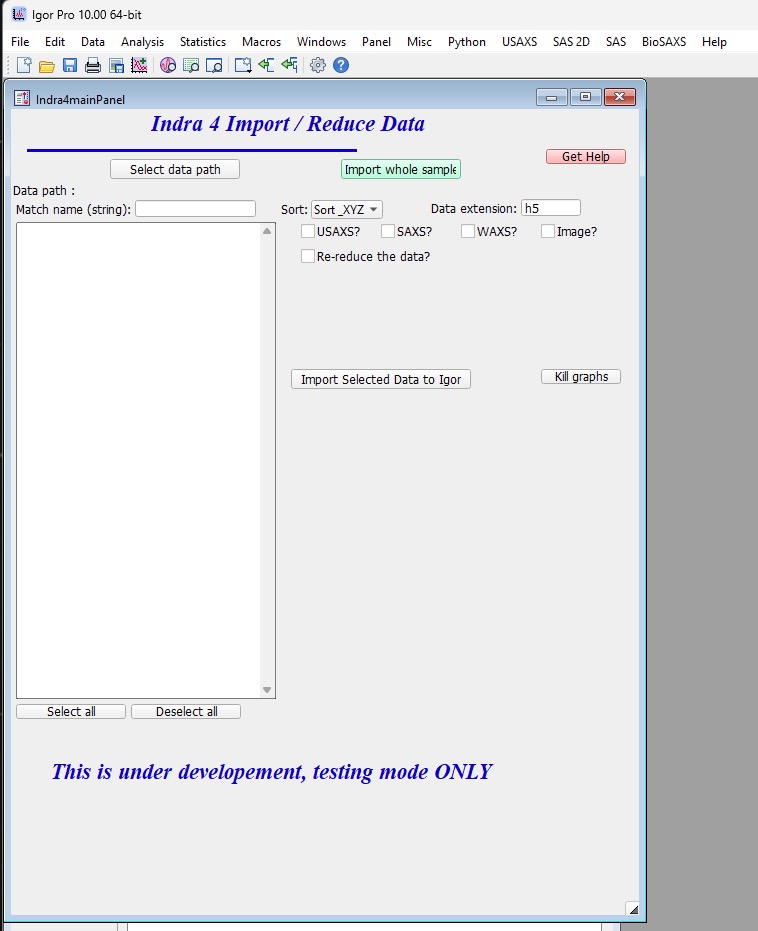
Two main import methods are available.
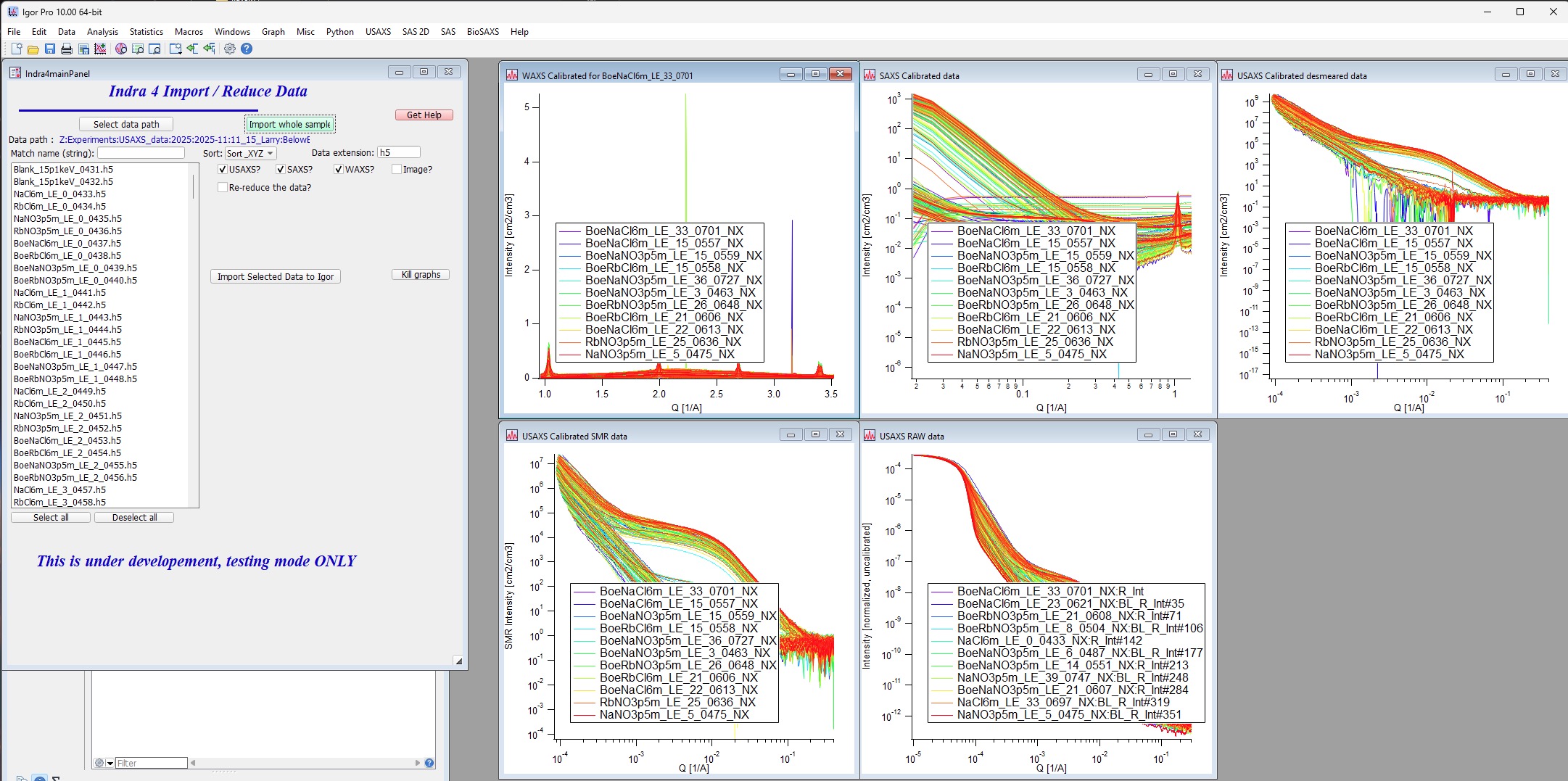
Import Whole Sample
This method imports all USAXS, SAXS, and WAXS data found within a sample
folder’s subfolders in a single step. Select the sample-level folder
(e.g., BelowEdge), and the code imports data from BelowEdge_usaxs,
BelowEdge_saxs, and BelowEdge_waxs automatically. Witness images are
not imported. This is the fastest method for getting data into Igor Pro.
Import Selected Data
Use this method when you need to import only a subset of data, for example during an ongoing experiment or when a sample folder contains a very large number of scans that you want to import selectively.
Click “Select data path” and navigate to any one of the three subfolders (
_usaxs,_saxs, or_waxs). Choose the subfolder that contains the most datasets for best matching.Select the checkboxes for the data types to import: “USAXS?”, “SAXS?”, “WAXS?”, “Image?”.
Click “Import Selected data to Igor”. If any selected data type does not exist for a given scan, it is silently skipped without error.
Note
The “Re-reduce data” option is a work in progress and may not function as expected. Limit use of this panel to the import functions described above.