Import data
This chapter describes how to import various types of 1D SAS and WAXS data into Irena. Available importers: ASCII, HDF5 canSAS NeXus, and canSAS XML.
Users of Indra 2 or Nika-produced data can skip this chapter.
ASCII example data from the APS USAXS experiment are included in the Irena
distribution, typically at:
Documents/Wavemetrics/Igor Pro/User Procedures/Irena/Example Data/.
Note
When loading data for use with Irena, decide on a naming convention before
importing. Unless you have USAXS data from the APS instrument, do not use
the USAXS option. Use the qrs naming convention: Q-vector waves start
with q_DataName, intensity waves with r_DataName, and error waves
with s_DataName.
Placing multiple datasets in a single Igor folder is strongly discouraged. When Irena saves results, it writes them to the folder from which the data originated. Irena does not overwrite existing results, but without a per-sample folder structure it can become difficult to determine which results belong to which dataset.
Best practice: use one Igor folder per sample, named after the sample.
Description
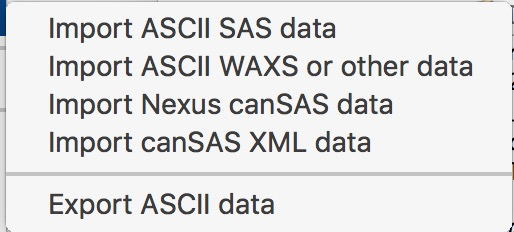
From the SAS menu, select “Data import and export” and choose one of:
“Import ASCII data”
“Import ASCII WAXS or other data”
“Import Nexus canSAS data”
“Import canSAS XML data”
Each tool has its own panel; this chapter describes the ASCII importer in detail, then covers differences for the others. Only one importer can be open at a time — opening a second automatically closes the first.
Importing ASCII SAS data
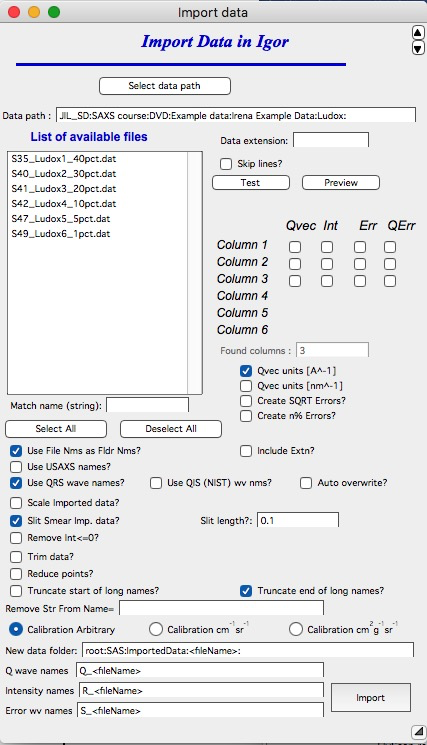
Controls:
“Select data path” — browse to the folder containing the data files.
“Data path” — shows the selected path. Not editable here; use “Select data path” to change it.
“List of available files” — lists all files in the current folder (filtered by “Data extension”). Select one or more files for import. Shift-click selects a contiguous range; Ctrl/Cmd-click selects individual files. Double- clicking runs “Test” and “Preview” on that file.
“Match name” — filter the file list by a name substring.
“Data extension” — if entered (e.g., “dat”), only files with that extension are shown.
“Skip lines” — number of header lines to skip. Igor usually skips ASCII headers automatically, so this is rarely needed.
“Test” — tests import of the first selected file; sets the column checkboxes and detected column count.
Red text indicating too many data points — many SAXS instruments produce far more data points than are useful for analysis. When this warning appears, use the “Reduce data points” option below.
“Preview” — opens the first selected file in an Igor notebook for manual inspection. Close the notebook when done.
“Column 1–6” / “Qvec Int err” — checkboxes for assigning columns to SAS quantities. Appears when “Found columns” is populated (automatically during “Test”, or set manually).
“Select all” / “Deselect all” — modifies the file selection.
“Qvec units” — select the correct unit. Data in nm-1 are automatically converted to Å-1 (Irena uses Å-1).
“Create errors” — generates √(Intensity) error bars when the file contains no uncertainty column. Errors can be further modified in the Data manipulation tool.
“UTF-8” — if Igor cannot identify the file encoding, it prompts for encoding before each file import. Check this box to force UTF-8 encoding and suppress the prompt. This resolves issues with non-standard ASCII characters in headers (e.g., Greek letters).
“Use file name as folder name” — strongly recommended. Creates a separate Igor folder named after each imported file.
“Use USAXS names” / “Use qrs wave names” / “Use QIS (NIST) wv nms” — select the naming system. One of these is required for multi-file import.
“Auto overwrite” — overwrites existing same-named data on re-import.
Data modifications applied during import (in this order, if selected):
(Q units conversion to Å)
“Scale imported data?” — applies a calibration scale factor.
“Slit Smear imported data?” — applies slit smearing to pinhole data (useful when combining with USAXS slit-smeared data). Enter slit length in Å-1. If a dQ wave is provided, it is convolved with the slit length. If not, a new dQ wave is created with the slit length assigned to each point.
“Remove Int ≤ 0” — removes non-positive intensity points.
“Trim data” — opens Qmin/Qmax controls. Enter 0 for no trimming in a direction.
“Reduce data points” — averages on a log-Q scale to reduce the point count. Recommended when more than 250 points are detected. Creates a Q-resolution wave.
“Truncate start/end of long names” — handles names exceeding 26 characters by trimming start or end.
“Remove Str From Name =” — removes a specified substring from sample names.
From version 2.51, intensity calibration flags can be recorded in the wave note:
“Calibration Arbitrary” / “Calibration cm²/cm³” / “Calibration cm²/g” — Irena tools that are calibration-aware (Modeling II, Plotting tool I as of version 2.53) use this flag to display correct units.
Single-file controls:
“Select data folder” / “New data folder” — set the target Igor folder.
The placeholder <filename> in the folder name is replaced by the actual
filename during import.
“Intensity wv name” / “Q wave name” / “Error wave name” — wave name
fields. <filename> is again replaced with the actual filename.
“*Import*” — performs the import.
Note: ASCII headers starting with special characters (#, $, etc.) are
attached to the wave note. Special characters and leading spaces are stripped
from each header line; lines are separated by ; in the wave note.
Importing ASCII WAXS data
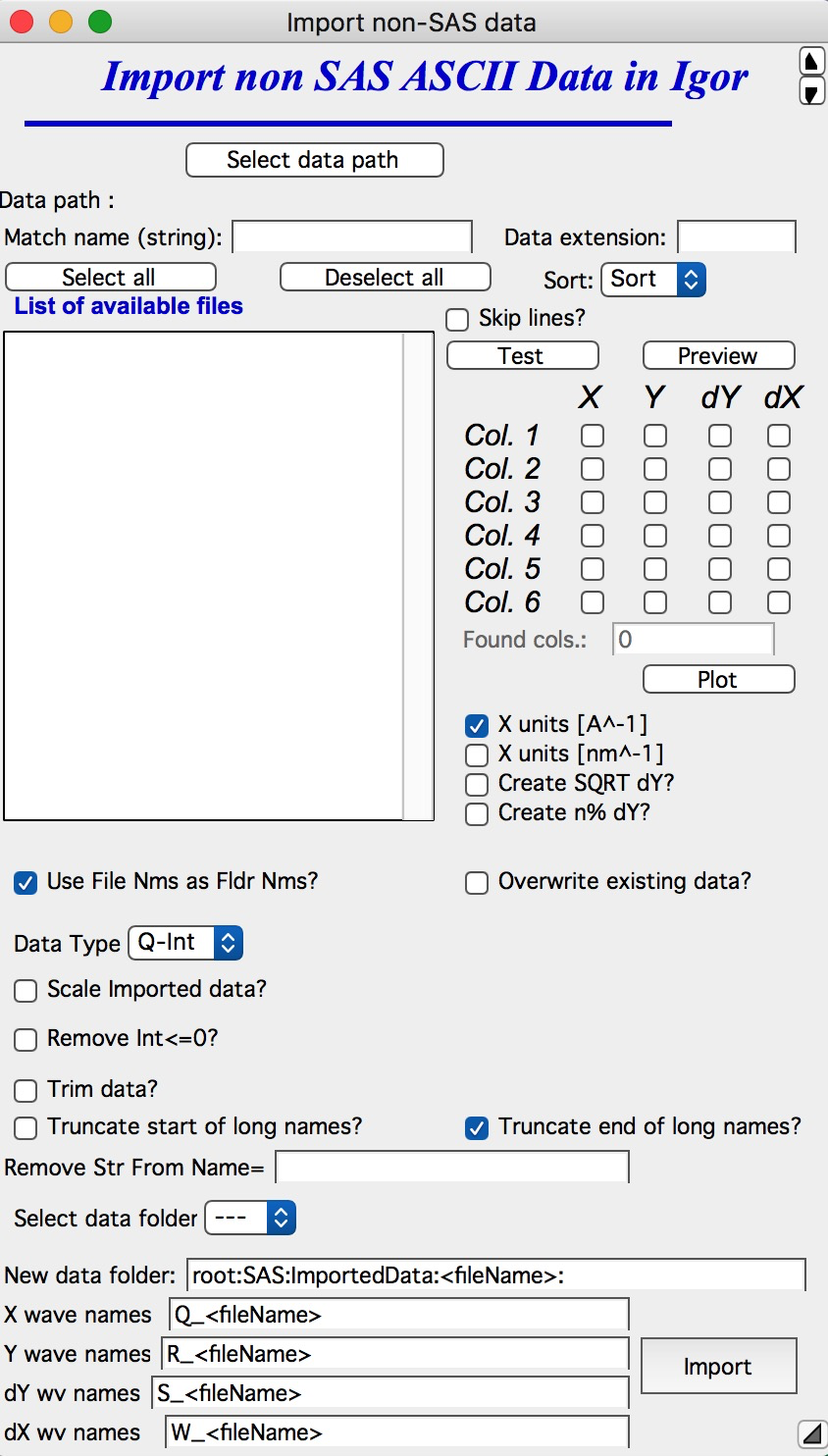
Intended for non-SAS data (powder diffraction, etc.) with x-axis, Intensity, Uncertainty, and optionally x-resolution. Options are limited to those relevant for this use case.
Importing NeXus canSAS data
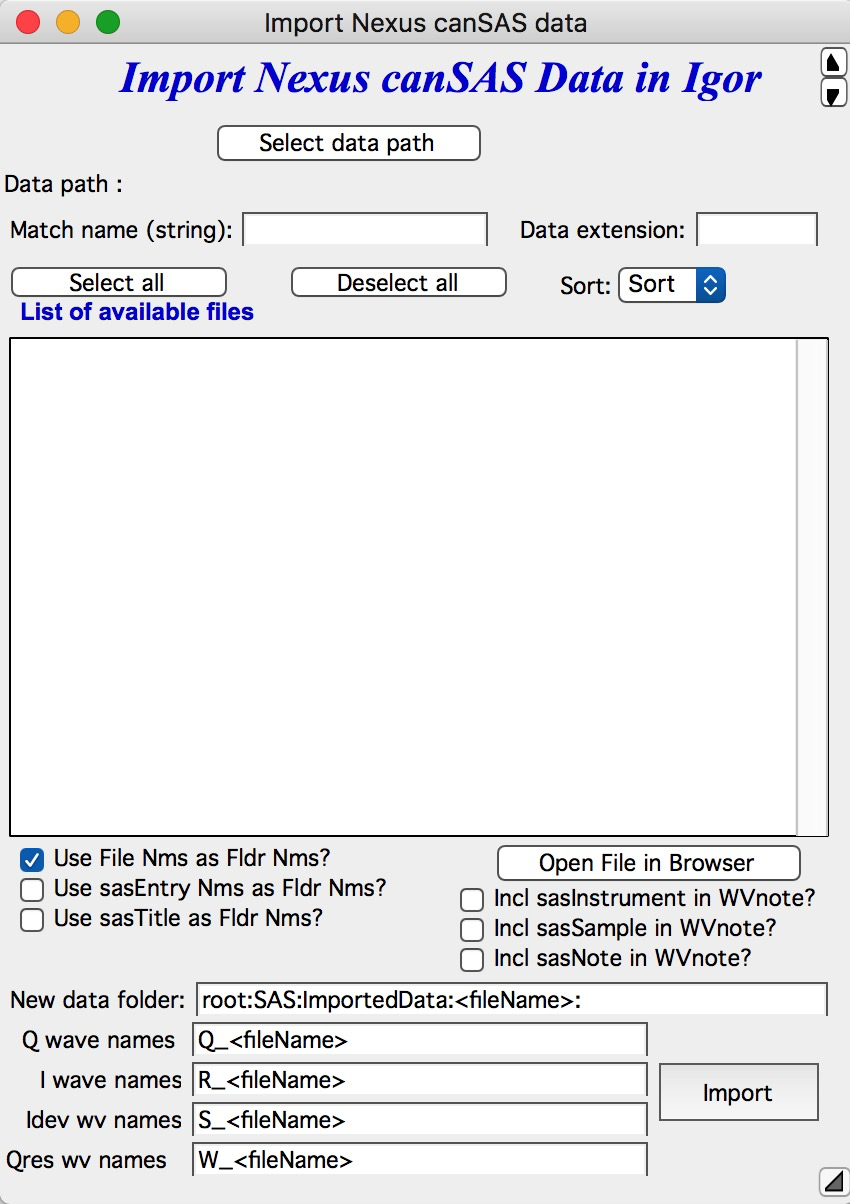
NeXus is a community standard for X-ray and neutron data files, using HDF5 as the container format. The canSAS application definition describes 1D and 2D reduced SAS data. From version 2.62, Irena imports 1D canSAS NeXus data.
For background on NeXus:
Irena supports NXcanSAS (output of reduced 1D or 2D data for analysis software). The importer requires minimal user input. If folder names are confusing, try a different “Use … as Fldr Nms” option.
To inspect file contents before import, select the file and click “Open File in Browser” to open it in the Igor HDF5 Browser.
Note
The canSAS standard is flexible enough that some files do not fully conform to the required structure. If import fails or produces unexpected results, contact the developer with a sample file.
Importing XML data
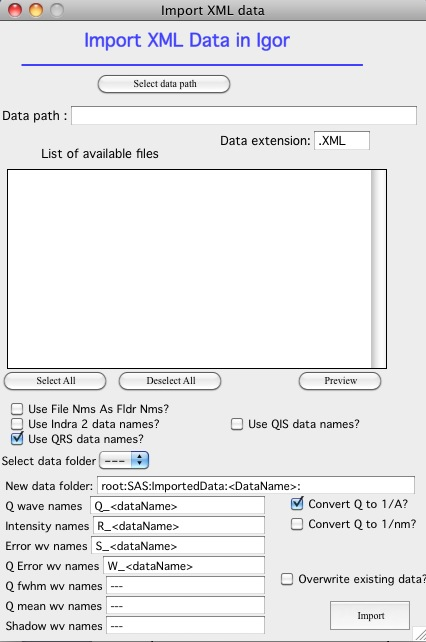
Requires the XML XOP file for Igor (see installation instructions for the link). Controls are similar to the NeXus importer, though simpler. Additional data columns from the canSAS XML format can be loaded for use by other tools.
Walk through: Importing a test file
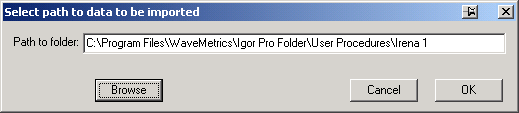
Click “Select data path” and navigate to the Irena example data folder:
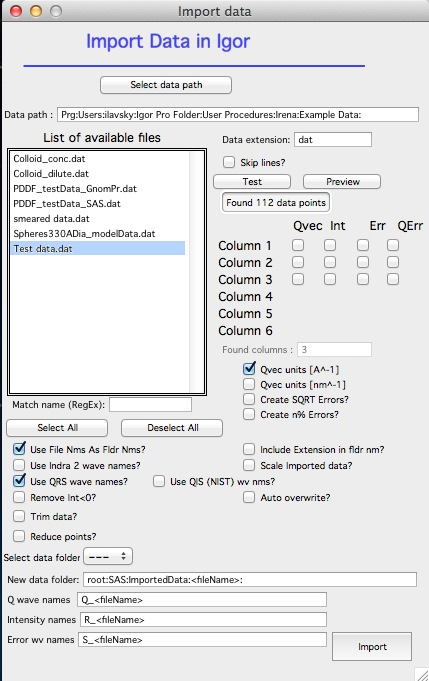
Enter “dat” in “Data extension”. The panel should look like:
Select “Test data.dat” and double-click (or click “Test” and “Preview”):
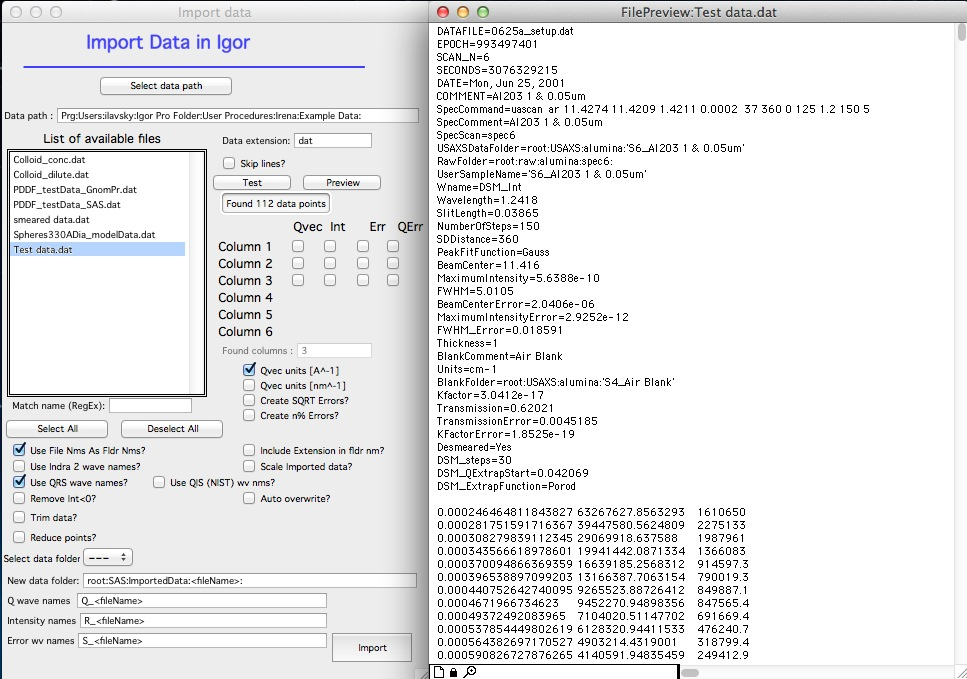
Three columns were found; the “Preview” notebook shows the file content. Igor automatically skipped the ASCII text header.
Set checkboxes as shown below. Note that “Create errors” becomes unavailable when any Error column checkbox is selected. When “Use file names as Fldr Nms” and “Use QRS wave names” are checked, folder and wave name fields are populated automatically:
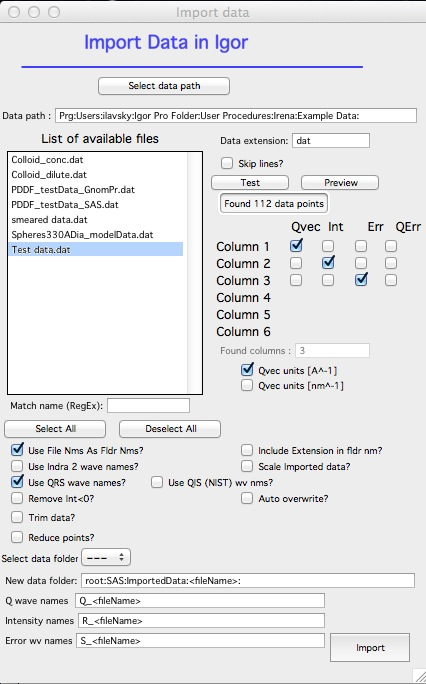
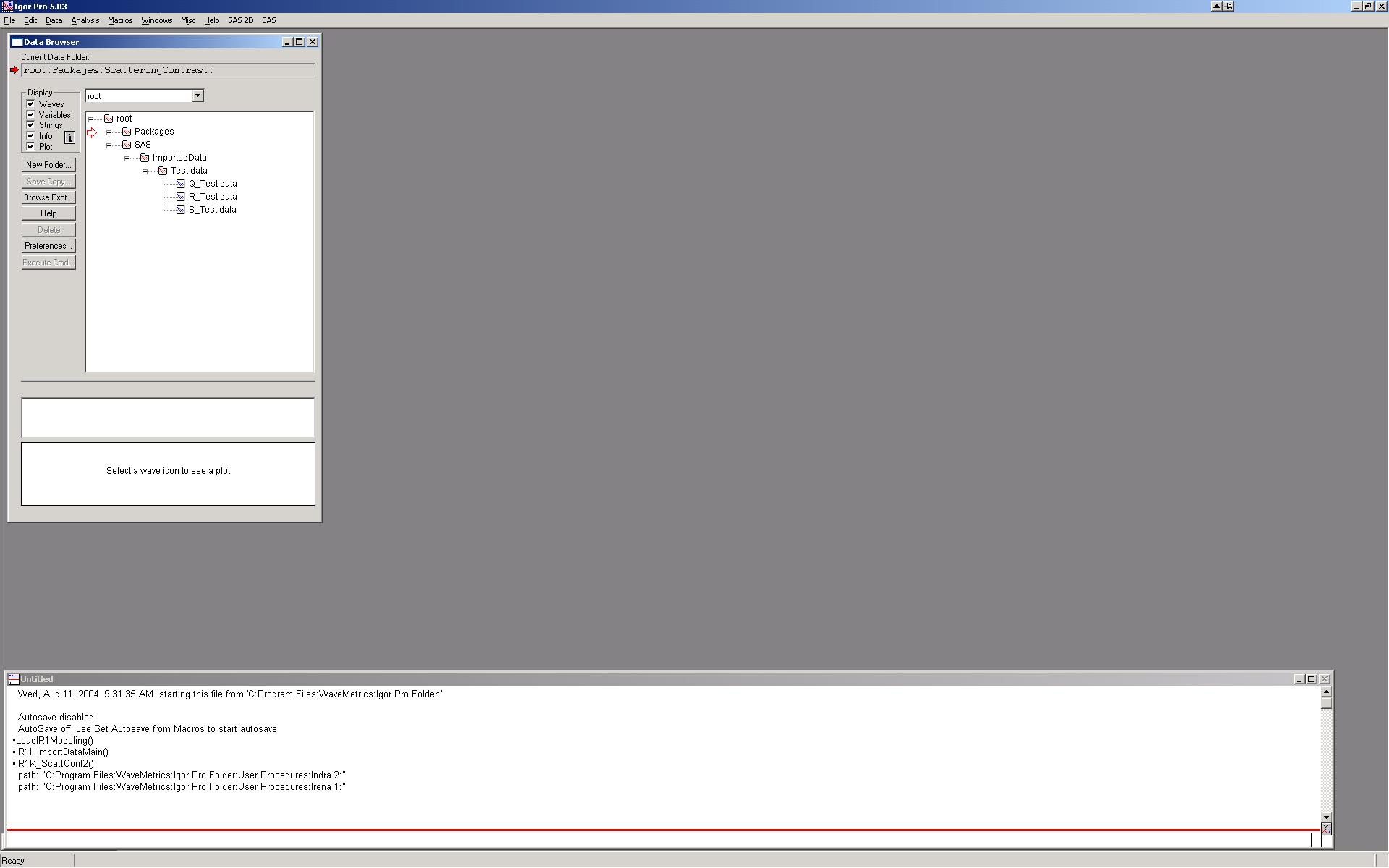
Click “Import” and close the Import panel. The Data Browser shows:
More complex example — importing 136 datasets with data trimming and point reduction:
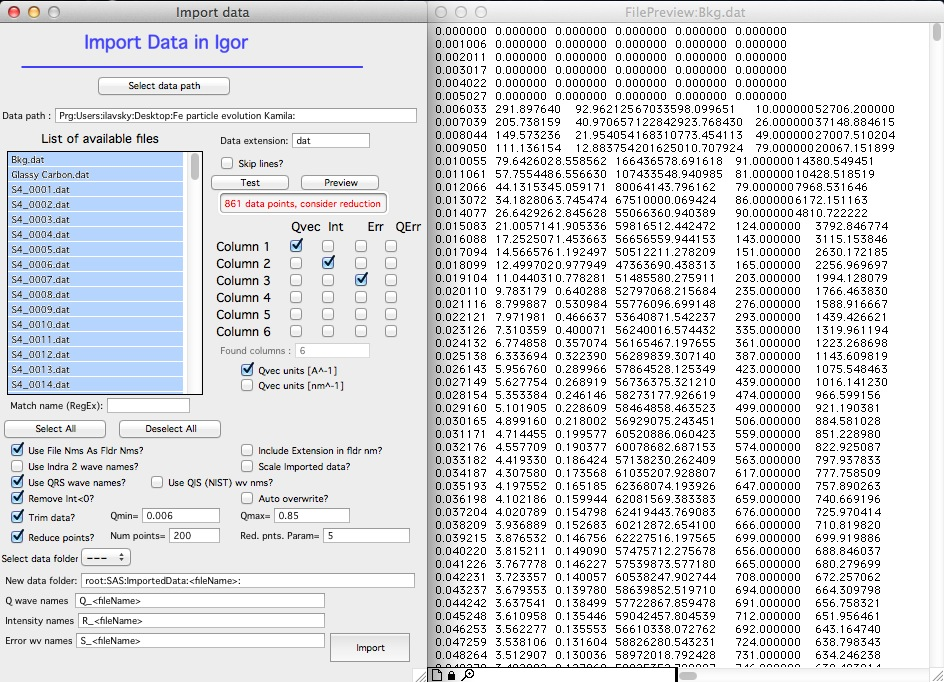
In this example, data were trimmed below Q = 0.006 (no data found there), reduced from 861 to 200 points, limited above Q = 0.85, and negative intensities removed. The resulting data have a logarithmic Q spacing with less high-Q noise, which is much easier to plot and analyze.